
You can follow the instructions provided below or watch the following video
Ring Central Send a Fax Training Video
To Send a Fax
Log into ring central user portal https://app.ringcentral.com
Or login to your desktop app
How to send a fax from the desktop and web app
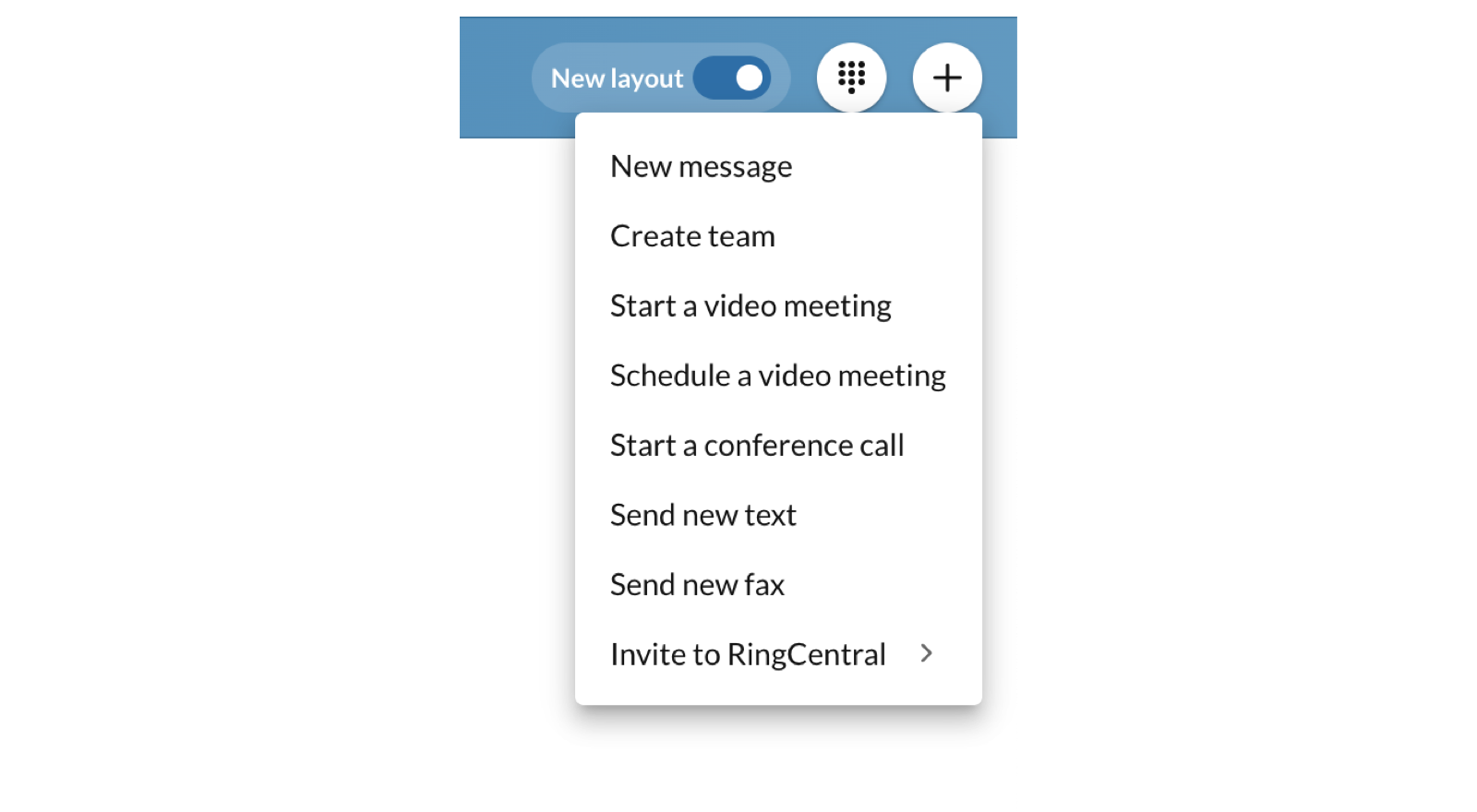
You can send a fax from anywhere in the RingCentral desktop or web app by clicking the
New actions (+)
button in the upper right corner, then clicking
Send new fax
.
You can also:
-
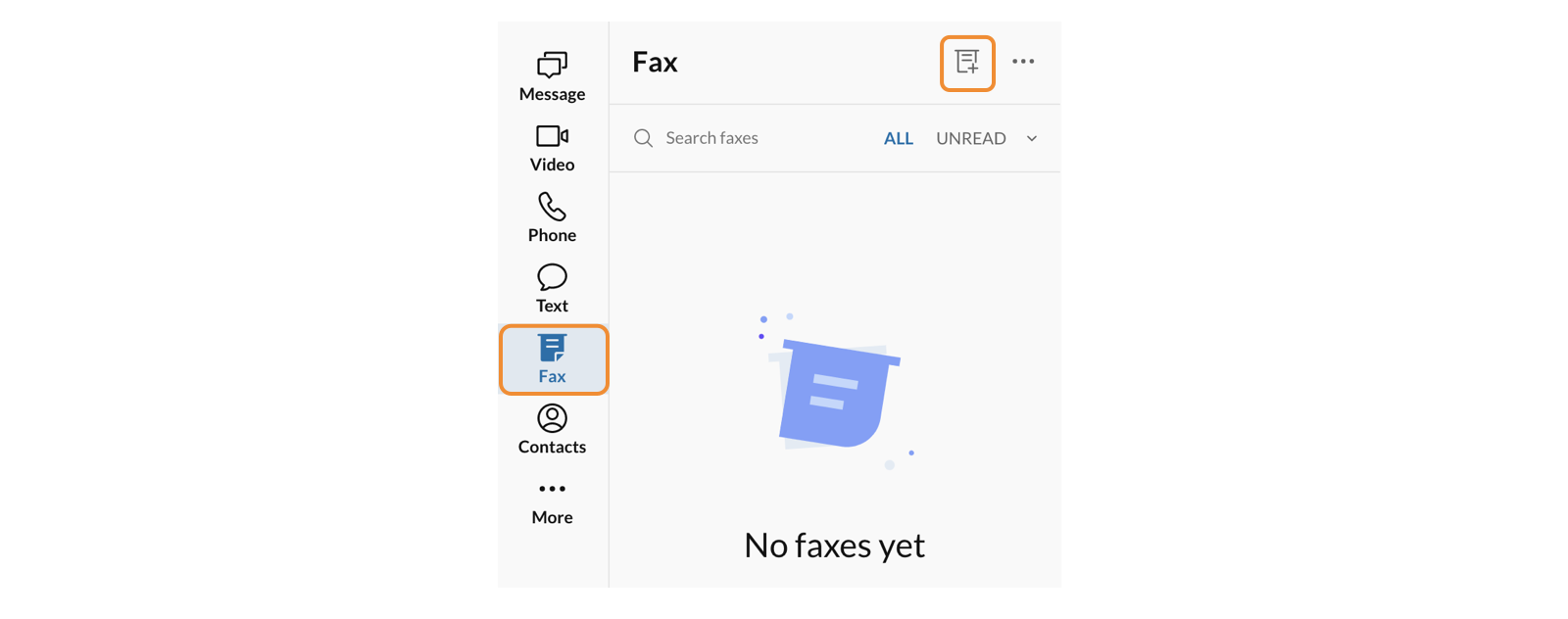
ClickFaxin your navigation bar.Note: If you don’t seeFax, checkInboxor theMoremenu depending on your tab customization. If you want fax as an option in the navigation bar, you’ll need to turn off the unified inbox feature.
-
Click theSend new faxicon in the left panel.
-
In the popup, enter your contacts’ phone numbers or names in theTofield. You can send a fax to up to 50 recipients at a time. To add more than 50 recipients, turn on fax broadcasting.
-
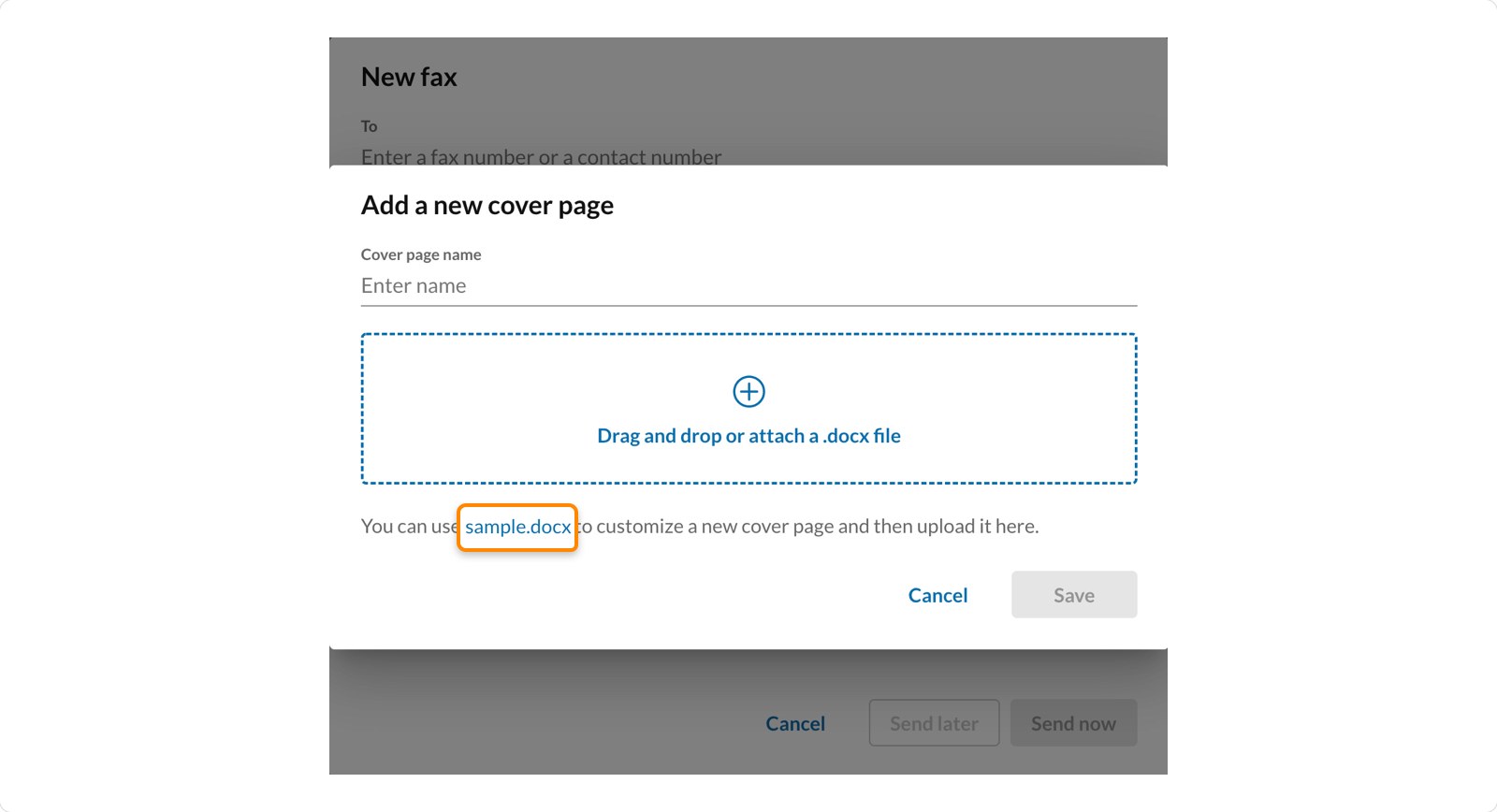
In theCover pagedropdown, select a style for your cover page or clickAdd cover pageto choose a template from your computer. If you don't want to use a cover page, clickNone.
-
To add a custom cover page:
-
-
You can also add more information in theNotesfield.
-
To attach files to your fax, click theAttach filesicon and select the files from your computer.All file attachments must be in supported formats and less than 50 MB.
-
To send the fax immediately, clickSend now. To send the fax at a future time:
-
ClickSend later.
-
-
Enter a date and time.
-
-
ClickSchedule.
-
How to send a fax from a profile
-
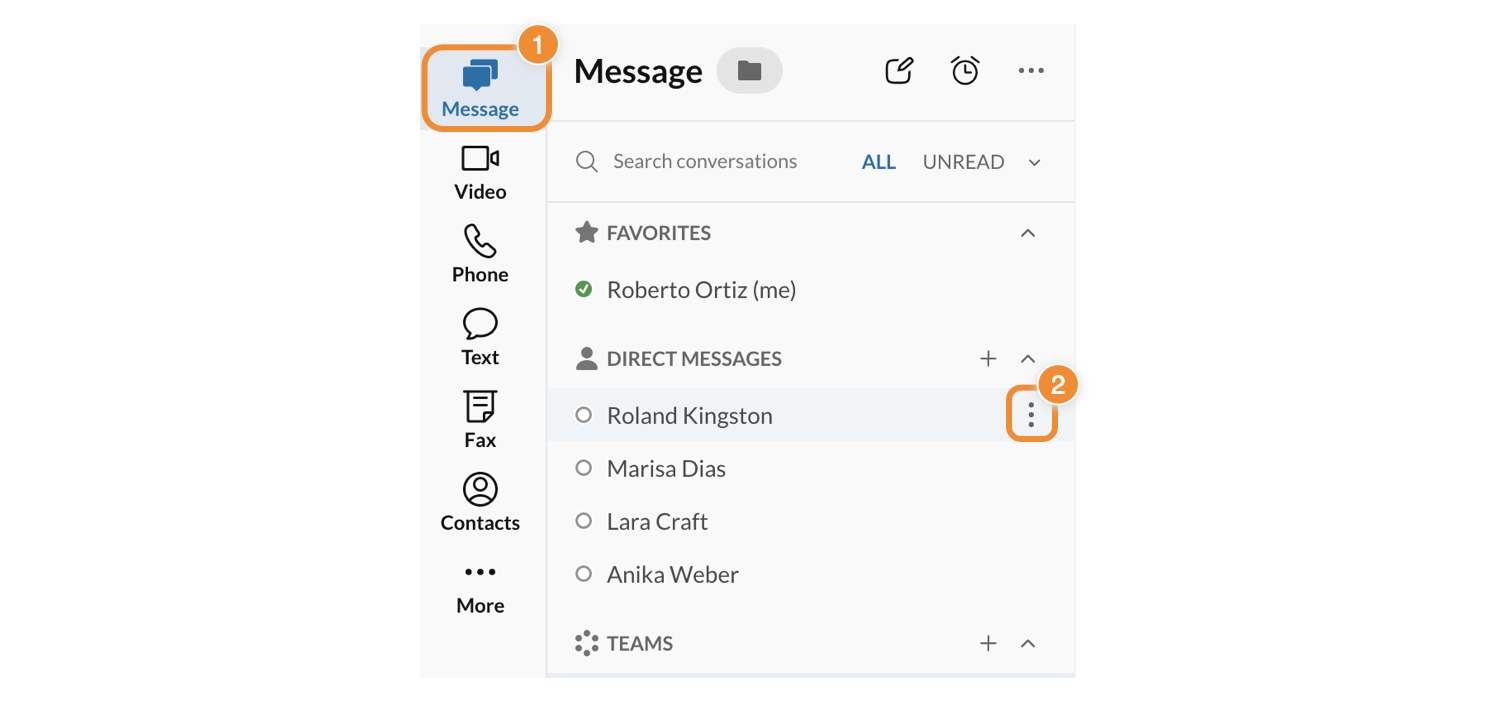
ClickMessageorContactsin the navigation bar.
-
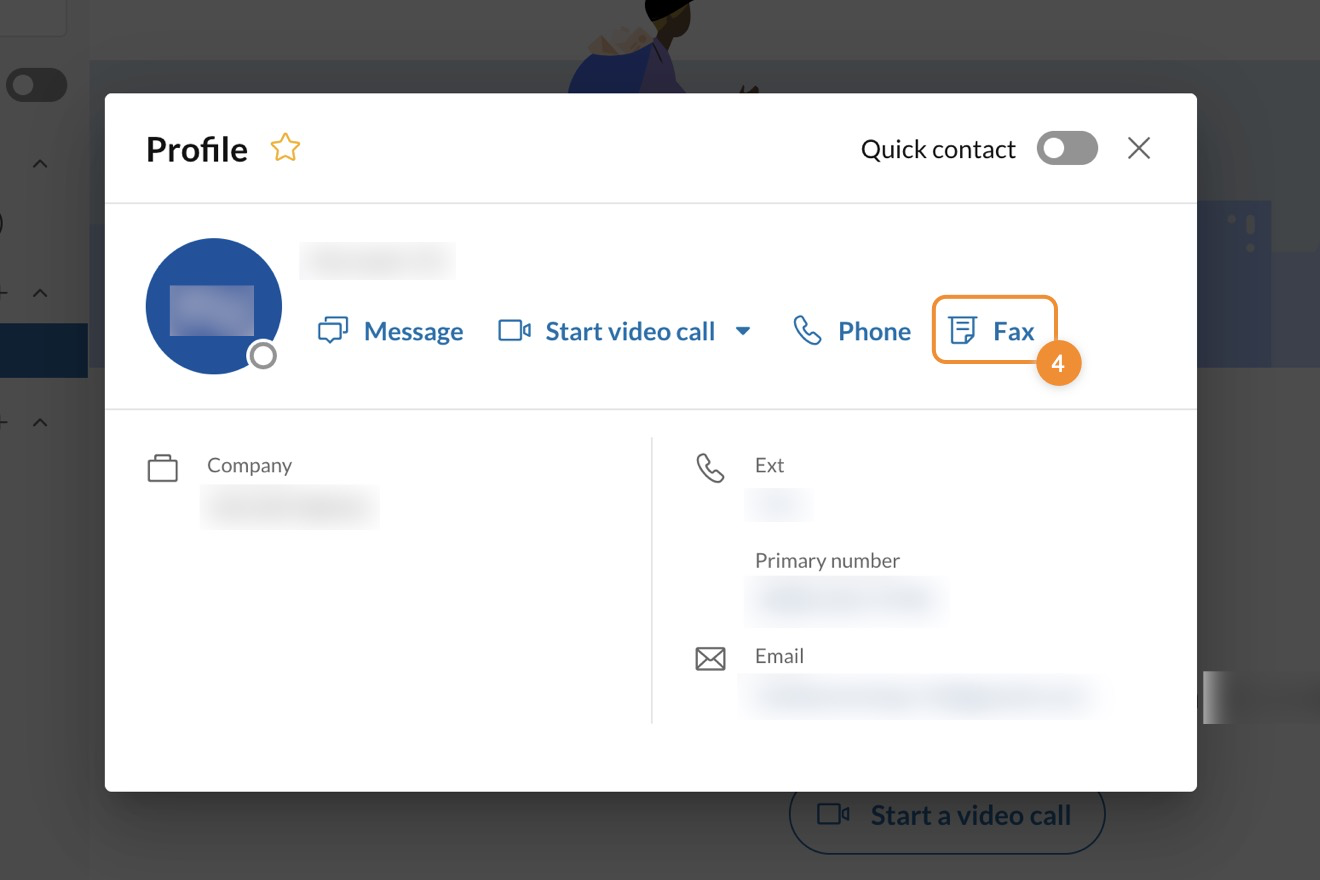
Click the three-dotMoreicon to the right of any contact’s name, then selectView profilefrom the dropdown.
-
ClickFax.
-
In theCover pagedropdown, select a style for your cover page or clickAdd cover pageto choose a template from your computer. If you don't want to use a cover page, clickNone.
-
To add a custom cover page:
-
ClickAdd cover page.
-
Enter a name for your cover page in theCover page namefield.
-
Drag and drop an existing file into the window or click anywhere in the window to locate a file on your computer, then upload it. You can also clicksample.docxto customize and upload a new cover page.
-
ClickSave. Cover pages are saved for later use.
-
You can also add more information in theNotesfield.
-
To attach files to your fax, click theAttach filesicon and select the files from your computer.All file attachments must be in supported formats and less than 50 MB.
-
To send the fax immediately, clickSend now. To send the fax at a future time:
-
ClickSend later.
- Enter a date and time.
- Click
Schedule.
- How to send a fax from the Print screen
You can fax any document or web page directly from the Print screen by adding
RingCentral Fax
to your list of printers. This feature is only available for Windows PCs.
Installing the Print-to-fax plugin
-
Go toSettings.
-
ClickPhoneto open your Phone settings.
-
In theFaxsection, clickInstallnext toPrint-to-fax.
Sending documents or web pages
-
Open the document or web page you want to attach to a fax.
-
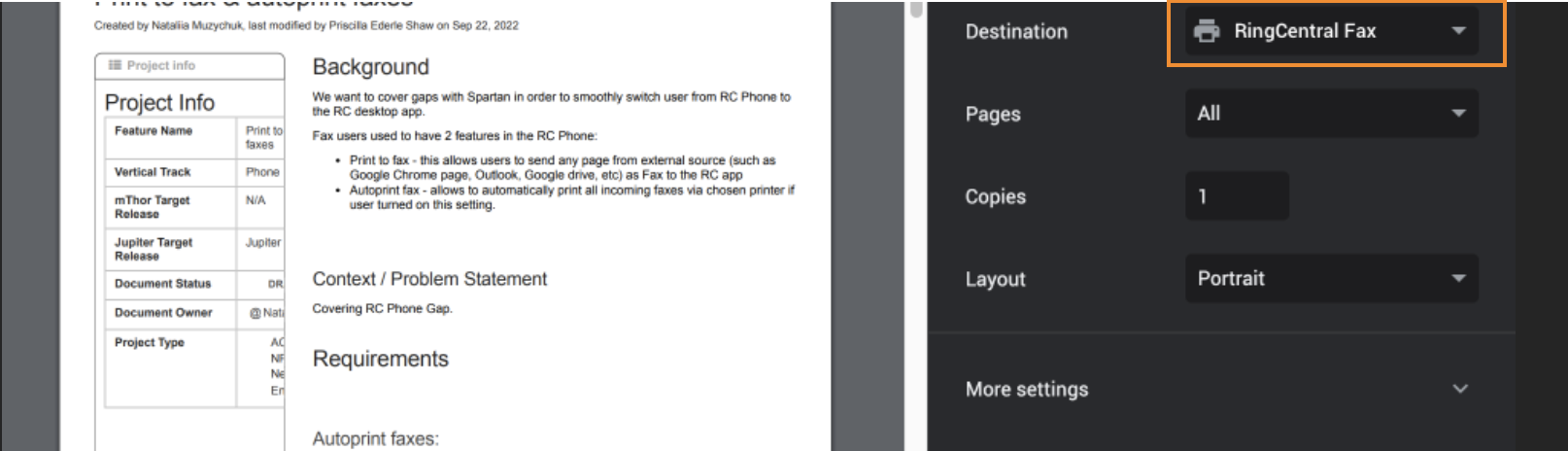
ClickPrintor pressCtrl + P.
-
SelectRingCentral Faxfrom the printer dropdown in the print window.
-
ClickPrint. The RingCentral app will open a new fax page with the document attached.
-
Enter phone numbers or names from your contacts list in theTofield.
-
Select aCover pagestyle or clickAdd cover pageto select a template. If you don’t want to use a cover page, selectNone.
-
You can also add more information in theNotesfield.
-
To send the fax immediately, clickSend now. To send the fax at a future time:
-
ClickSend later.
- Enter a date and time.
- Click
Schedule.
- To check the status of your sent faxes, go to
Fax > SentorFax > All faxes. Fax status options areUnread,Sent,Received, orFailed.
How to fax scanned documents
The RingCentral app allows you to send scanned documents by fax when you scan documents directly from the
Fax
screen.
Before using the feature, make sure your scanner has the most current driver and software installed. The app will automatically detect the scanner and connect to it. Refer to your scanner's manual for more information.
Selecting your scanner
-
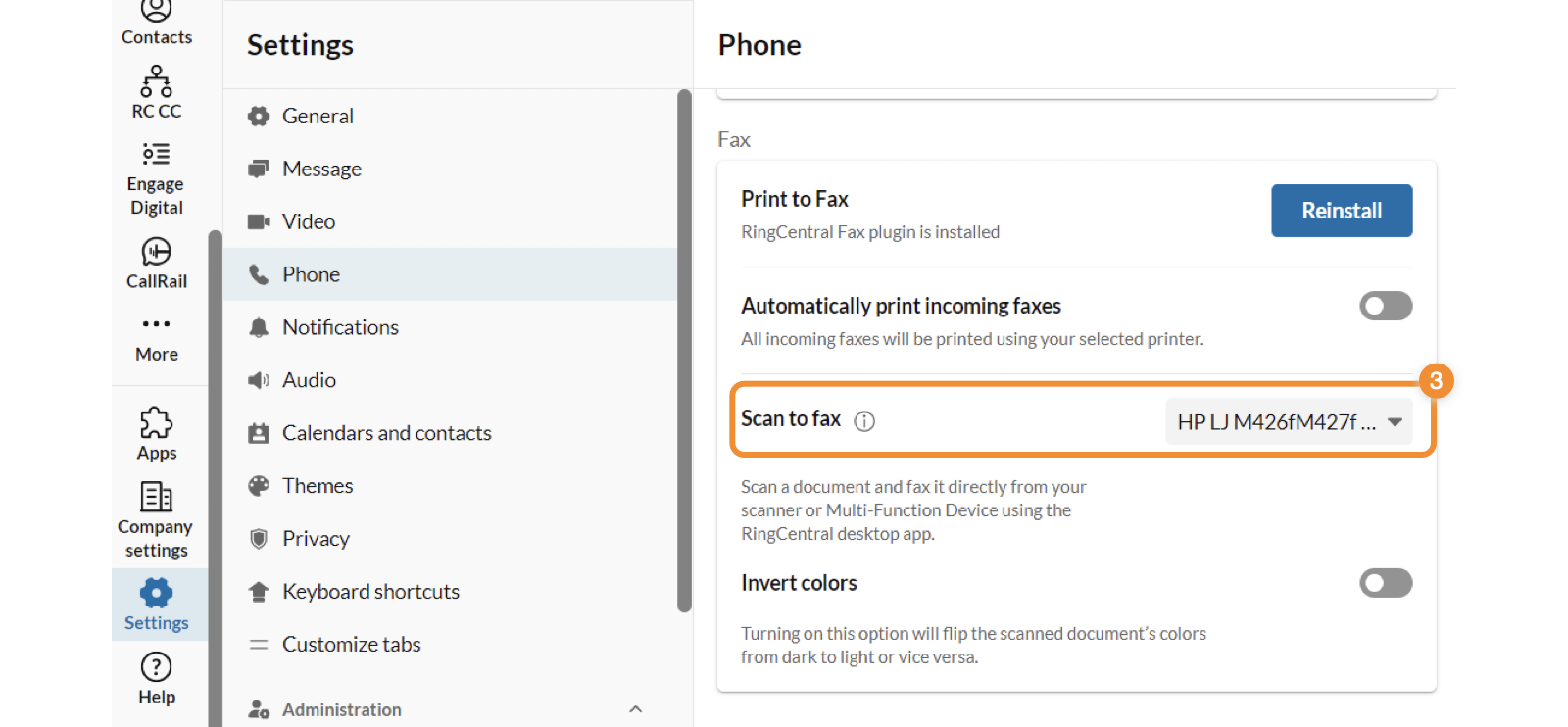
Go toSettings, then clickPhoneto open your Phone settings.
-
Scroll down to theFaxsection.
-
Select your scanner from the dropdown next toScan to fax.Note: If your scanner is off, the dropdown is grayed out.
-
Set up your scanner settings:Paper source,File type, andInvert colors.
After setup, when you send a new fax you’ll have the option to
Scan
in the New fax window.

Faxing scanned documents
-
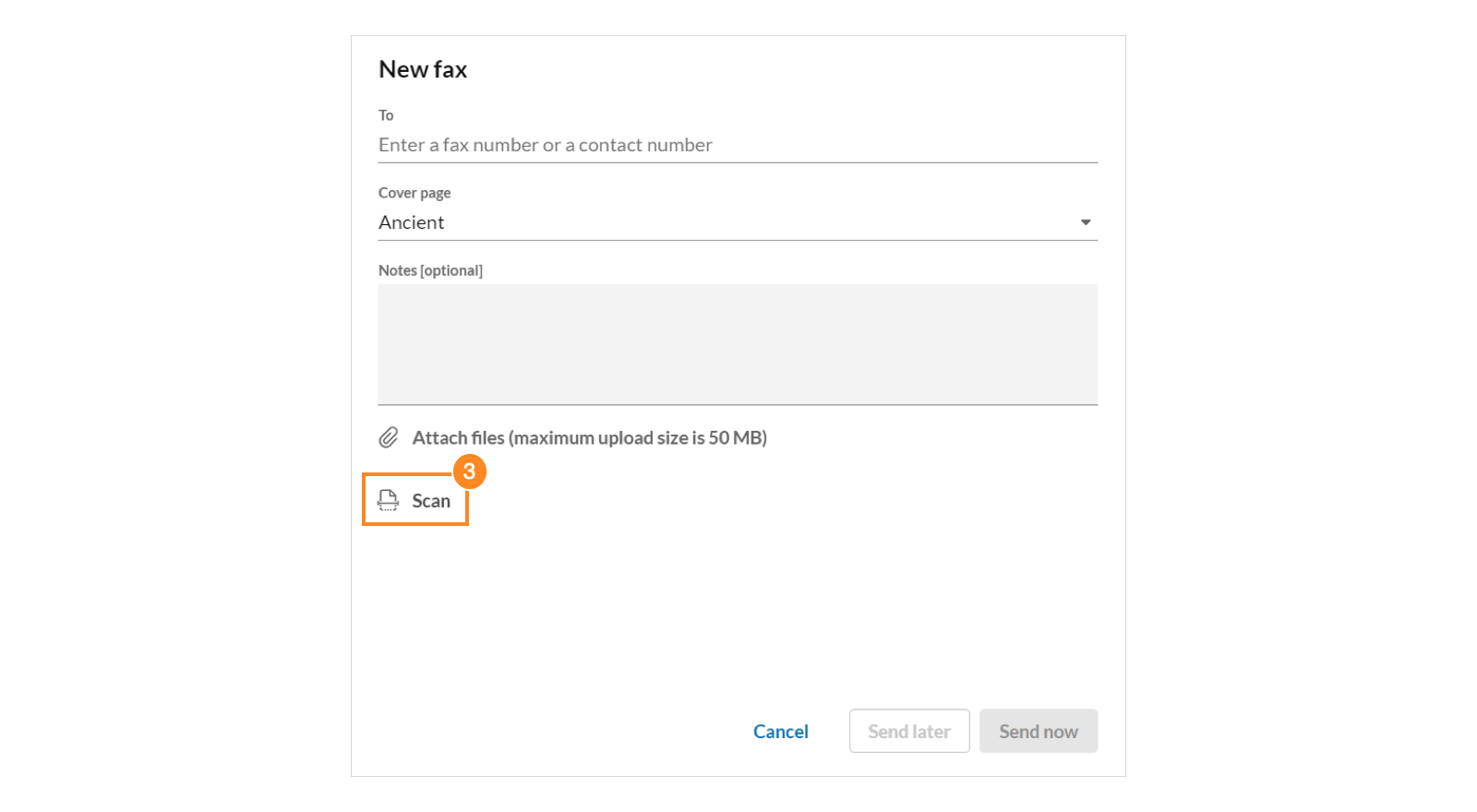
Click theNew actions +icon in the top right corner and selectSend new fax.
-
ClickScanto scan and send attachments.
-
Enter the phone numbers or names from your contacts list in theTofield.
-
Select aCover pagestyle or clickAdd cover pageto select a template. If you don’t want to use a cover page, selectNone.
-
You can also add more information in theNotesfield.
-
To send the fax immediately, clickSend now. To send the fax at a future time:
-
ClickSend later.
- Enter a date and time.
- Click
Schedule.
- To check the status of your sent faxes, go to
Fax > SentorFax > All faxes. Fax status options areUnread,Sent,Received, orFailed.
Comments
0 comments
Article is closed for comments.